
MT5 Journal Sync
Version 1.06 · MetaTrader 5
HybridTraderAI Journal Sync · MQL5 Market
One install path for MetaTrader 5 on Windows and Mac.
HybridTrader Journal Sync runs inside MetaTrader 5 and sends your trades to HybridTrader. It never opens, changes, or closes trades for you. It only watches and syncs.
1. Quick setup
These steps are the same on Windows and Mac. You install the app from the MQL5 Market inside MetaTrader 5, paste your Journal key, then leave it running on one chart.
- Request your Journal key.
- In MetaTrader 5, open Market and install HybridTraderAI Journal Sync.
- Allow HybridTrader's API URL once in MetaTrader settings.
- Attach the Expert Advisor to one chart and paste your key into API Key.
- Use Sync Trade History if you want to import older trades.
2. Get your Journal key
You need a HybridTrader Journal key before the Expert Advisor can sync. Request one using the MT5 Journal key request form.
Treat your Journal key like a password. Do not share it or include it in screenshots.
3. Install from MQL5 Market
- Open MetaTrader 5.
- Open the Market tab at the bottom of MetaTrader.
- Search for HybridTraderAI Journal Sync, or open the MQL5 product page.
- Click Open or install it from the Market page.
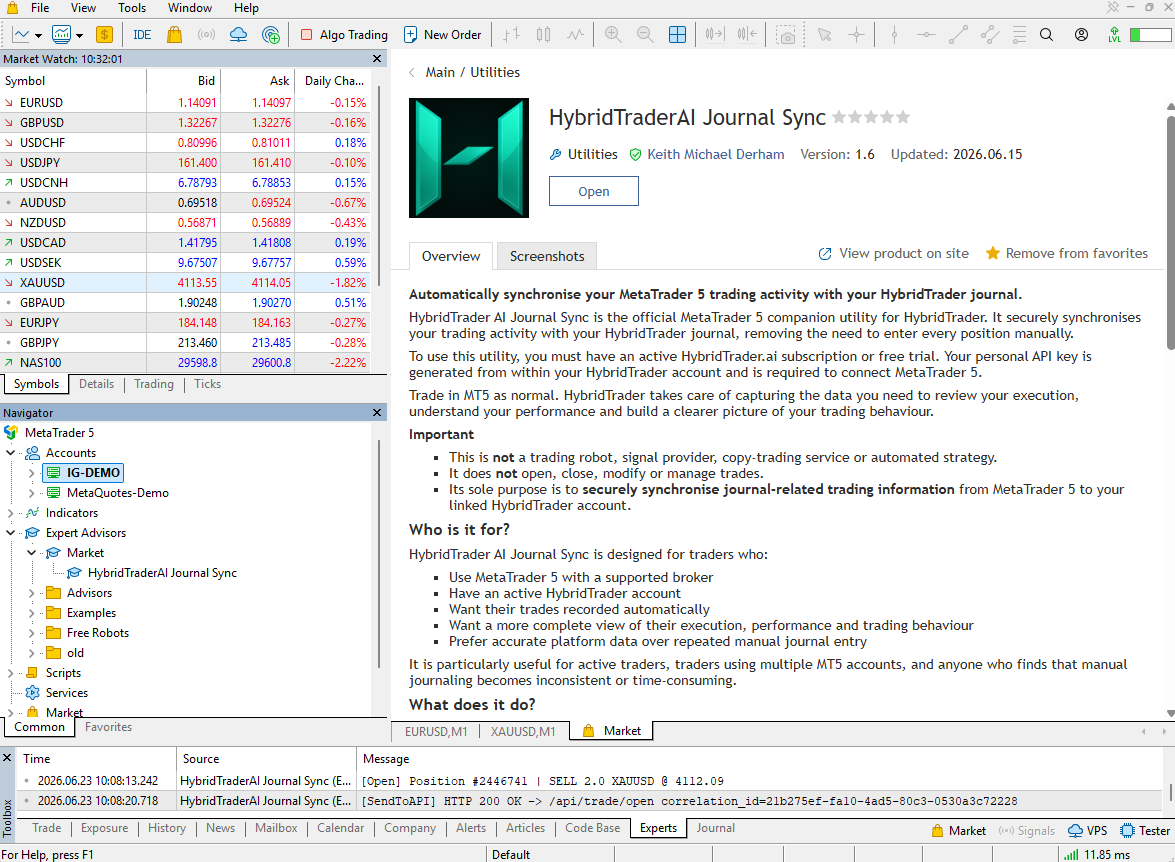
4. Allow HybridTrader once
MetaTrader blocks website calls until you allow the HybridTrader API URL. Do this once per MetaTrader install.
- In MetaTrader 5, open Tools then Options (shortcut Ctrl + O).
- Open the Expert Advisors tab.
- Tick Allow WebRequest for listed URL.
- Click + and add this URL exactly:
https://api.hybridtrader.ai - Click OK to save.
Error 5203 means this URL is still missing from the allowed list.
5. Attach and add your key
Attach the Expert Advisor to one chart only. It watches your whole account, not just that chart's symbol.
- Open any chart (symbol and timeframe do not matter; EURUSD is fine).
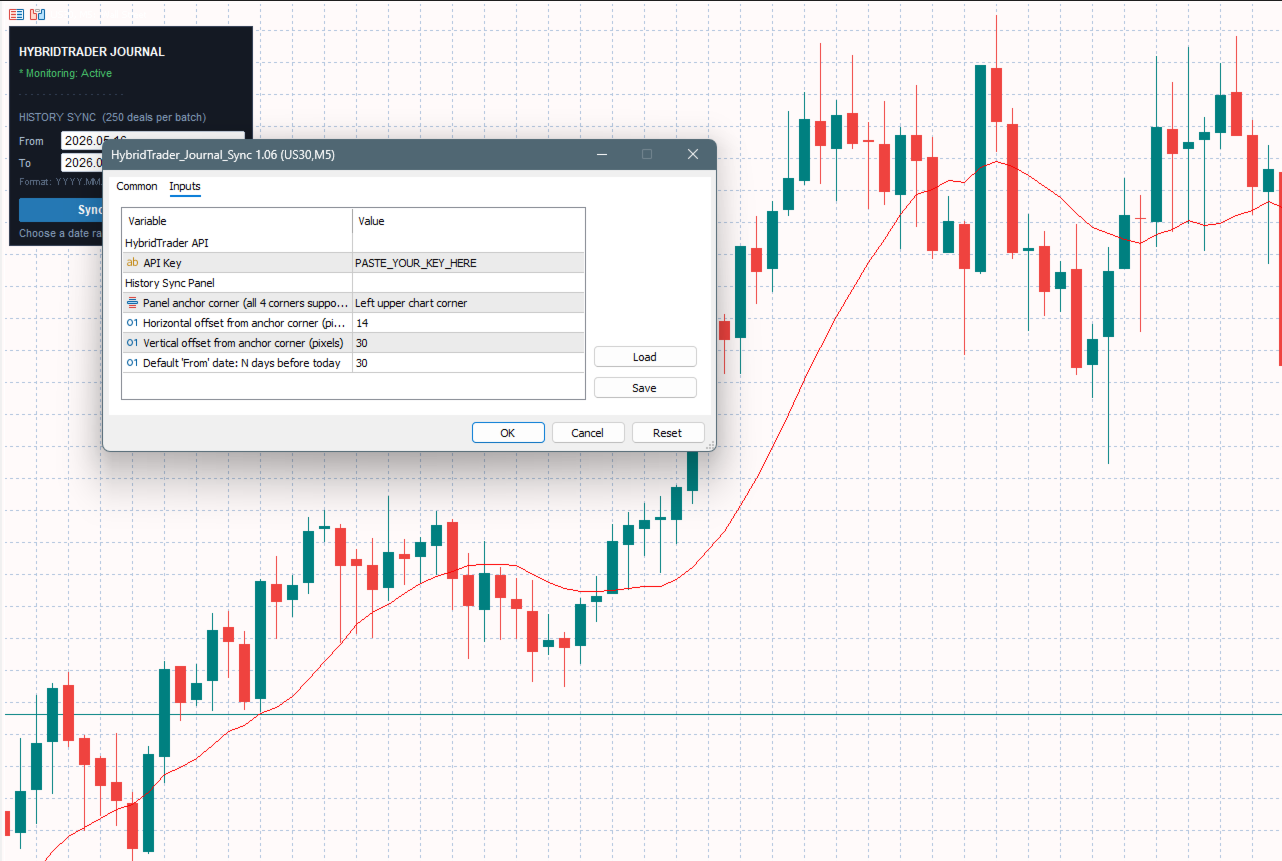
- In Navigator, open Expert Advisors, then drag HybridTraderAI Journal Sync onto the chart.
- On the Inputs tab, paste your Journal key into the API Key field.
- Leave the panel settings as they are unless you want to move the on-chart panel.
- Click OK.
- You should see the HybridTrader panel on the chart with Monitoring: Active.
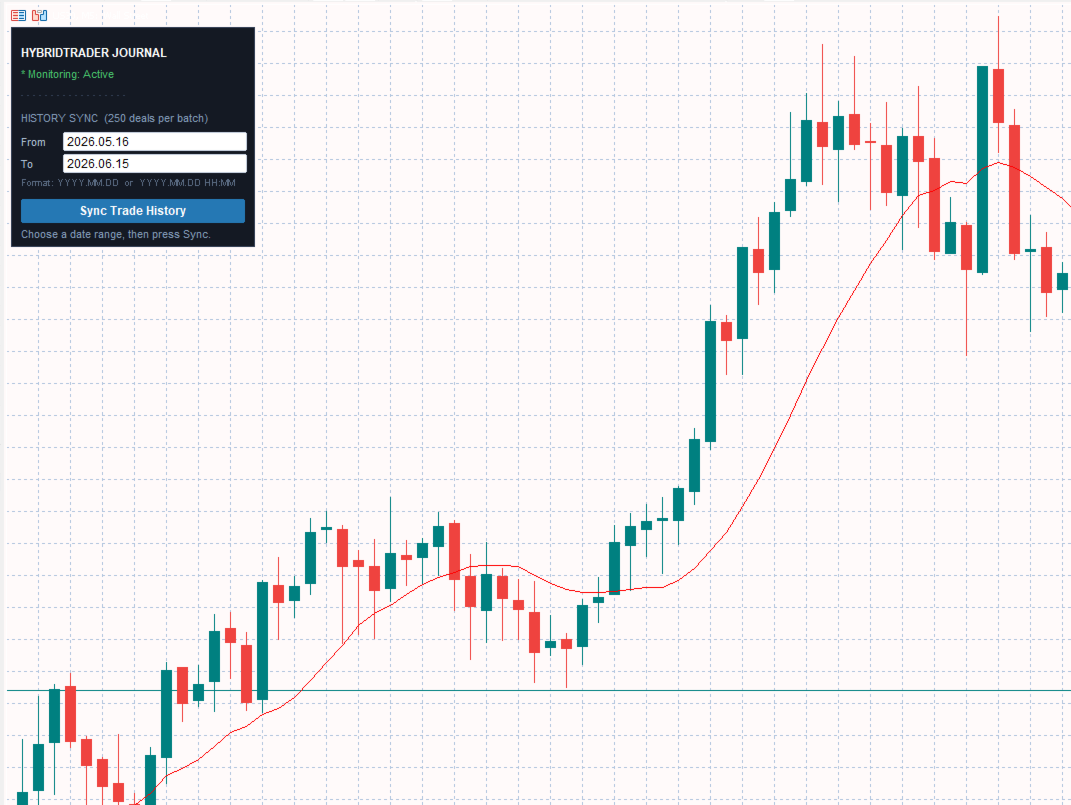
Important: Turn on Algo Trading in the MetaTrader toolbar. Expert Advisors do not run when it is off.
6. Sync older trades
New trades sync while MetaTrader is open and Algo Trading is on. To send older trades, use the History Sync panel on the chart.
- Enter the From and To dates.
- Dates can look like
2026.05.15(year, month, day) or with a time, for example2026.05.15 14:30. Dashes are also fine, for example2026-05-15. - Click Sync Trade History.
- Green text means it worked. Red text means MetaTrader needs attention. For details, read the Experts tab in Terminal.
Each sync sends up to 250 trade records. If you hit the limit, choose a smaller date range and sync again. Running the same range twice is safe.
7. Troubleshooting
Open the Experts tab at the bottom of MetaTrader first. HybridTrader Journal Sync writes clear messages there when something goes wrong.
Error 5203 in the Experts log
Cause: MetaTrader is still blocking the HybridTrader website address.
Fix: Do Section 4 again: Tools, then Options, then Expert Advisors, then tick Allow WebRequest for listed URL, add https://api.hybridtrader.ai with the + button, then click OK.
Error 5204 in the Experts log
Cause: MetaTrader cannot reach HybridTrader (internet, firewall, or server problem).
Fix: Check your connection. If it keeps happening, contact support or check HybridTrader status.
HTTP 401 in the Experts log
Cause: The Journal key is missing, wrong, or copied with extra spaces.
Fix: Right-click the chart, open Expert Advisors, then Properties, then Inputs. Paste the key HybridTrader gave you into API Key. Still stuck? Submit the MT5 Journal key request form: https://firegenie.notion.site/8b633762a9384610b9e07bea6f61206f?pvs=105
No HybridTrader panel on the chart
Cause: Algo Trading is off, or the Expert Advisor stopped when it started.
Fix: Turn Algo Trading on. Read the Experts tab for red text. Remove the Expert Advisor from the chart and drag it on again.
Nothing appears in Navigator
Cause: The Market install has not completed, or MetaTrader has not refreshed the Expert Advisors list.
Fix: Open the Market product page again and confirm it is installed. Then restart MetaTrader 5.
History Sync shows 'HistorySelect failed'
Cause: MetaTrader could not read history for those dates (uncommon, often temporary).
Fix: Press Sync again. Restart MetaTrader if it repeats. Read Experts for more detail.
'No deals found in selected date range'
Cause: That range has no buy/sell trades. Deposits, withdrawals, and balance-only lines are skipped.
Fix: Widen the dates or check in MetaTrader Account History that trades exist in that period.
'250 limit reached'
Cause: Too many trade records for one run (see Section 6).
Fix: Use a shorter date range, sync, then repeat for the next dates.
Stop-loss / take-profit changes missing in HybridTrader
Cause: The trade was already open before you attached the Expert Advisor, so the first values were saved as the starting point.
Fix: The first change after attach may not show as an 'edit'. Later edits to stop-loss or take-profit on that same trade should appear.
8. FAQ
Does the Expert Advisor place trades for me?
No. It only reads your trades and sends copies to HybridTrader. It never sends orders to your broker.
Which chart or timeframe should I use?
Any chart is fine. The whole account is watched. Many people pick a quiet pair (for example EURUSD) on a higher timeframe so the chart stays tidy.
Will it slow MetaTrader down?
You should not notice a difference. It wakes up when trades change, not on every price tick.
Does this work on Windows and Mac?
Yes. Install it from the MQL5 Market inside MetaTrader 5. The setup steps are the same.
Does it work on a VPS?
Yes, same steps as on your home PC. The VPS needs normal internet access to HybridTrader (secure web traffic on port 443).
What if I close MetaTrader while I have open trades?
Anything that happens while MetaTrader is off is not sent live. When you open MetaTrader again, use History Sync to send the missing dates.
Can I use a demo account?
Yes. Demo and live trades are sent the same way.
Is my Journal key safe?
MetaTrader stores it in your Inputs like any other Expert Advisor setting. Treat it like a password: do not share it or put it in screenshots. Submit the MT5 Journal key request form (https://firegenie.notion.site/8b633762a9384610b9e07bea6f61206f?pvs=105) for a new key if you think someone else saw it.
How do I install a new version?
Use the MQL5 Market in MetaTrader 5. If MetaTrader offers an update, install it there. Keep your Journal key handy in case MetaTrader asks for inputs again.